Post-production
Text blocks and headings
Add special thanks, dedications and on-screen headings with text blocks: each line you type is one line on screen, styled like any other credit.
The video loads from YouTube when you press play. Watch it on YouTube.
This page covers the part from 4:28. Jump to 4:28 on YouTube.
Not every credit is a role with names. A special thanks, a dedication, a copyright line or a heading like “Cast” or “Second unit” goes in a text block: each line you type is one line on screen, styled with its Text style like any other credit.
Before you start
- You need to be an admin or an editor on the project.
- Text blocks are added in the Composition tab, inside a scene. While the credits are locked by an approval workflow, the composition can’t be changed.
Steps
1. Add a text block
- In the Composition panel, find the scene and the place where the text should go.
- Click Add block there: at the top of the scene, or between two blocks.
- In Choose block type, pick Text.
2. Type the lines
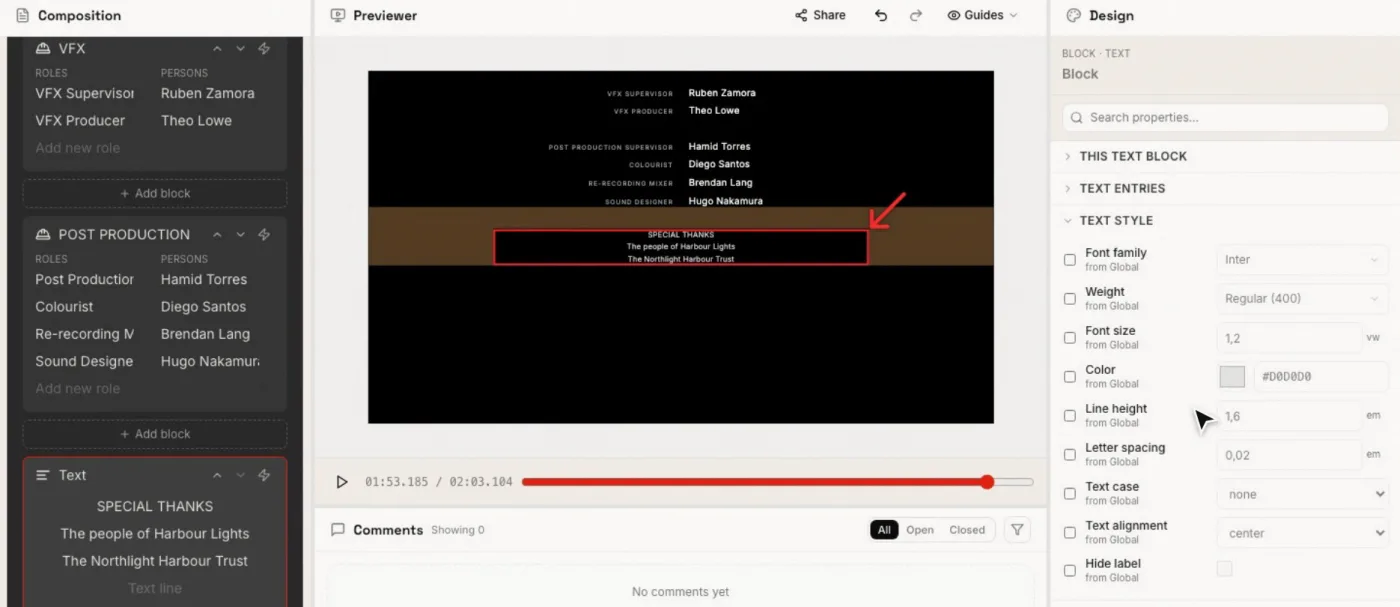
Click New line in the block and type. Press Enter to start the next line. For a special thanks, for example:
- SPECIAL THANKS
- The people of Harbour Lights
- The Northlight Harbour Trust
Each line is a separate line on screen, in the order you typed. To take a line out of the block, click the × next to it (Remove from composition): it stays in the Data tab, where you can delete it for good.
3. Style the text
Select the block and open Text style in the Design panel: Font family, Weight, Font size, Color, Line height, Letter spacing, Text case and Text alignment. To change every text block in the film, select Credits movie and open Text → Text style in the Global defaults.
Select a single line to style only that line, for example a bigger “SPECIAL THANKS” above smaller names.
4. Add a heading on screen
The name of a block in the Composition panel (the “CAMERA” or “Text” in its header) is only a label for you: it never appears on screen, in the preview or in the render (the Excel export lists it only to help you find your way). To show a heading in the credits, add a text block with the heading as its line, and place it where the heading should appear, for example a text block “SECOND UNIT” just above the second unit’s crew blocks.
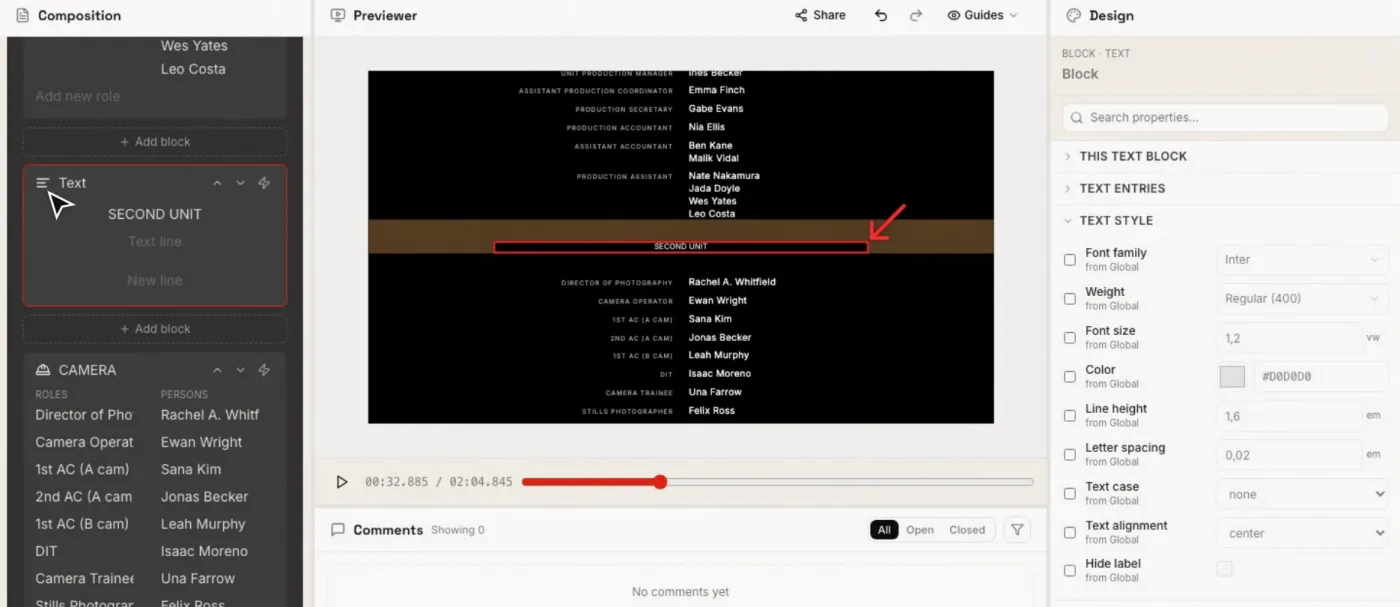
To make your headings look different from the rest of the text, select the heading’s block and override its Text style (a larger size, a heavier weight). See Inherit and override.
Related pages
Try it on your own production
EndCreditsPro is free during the beta. Credits from day one.
Last updated October 22, 2026.