Episodic
Credits for a TV series
Run a whole series in one project: add seasons and episodes, and give every episode its own main titles and end credits, with the team and approval workflow set up once.
The video loads from YouTube when you press play. Watch it on YouTube.
A series isn’t one set of credits: it’s main titles and end credits for every episode. The regular cast and the heads of department stay the same, but the director, the writer and the guest cast change each time. In EndCreditsPro the whole series is one project, and every episode keeps its own credits, so a guest star from episode two never ends up in episode five.
Before you start
- To create the project you need an EndCreditsPro account and to belong to an organization.
- To add or edit episodes you need to be an Admin or an Editor on the project. Only an Admin can delete an episode.
Steps
1. Create the project as a series
- In Projects, click New project and type the Project name.
- Under Type, choose Series / Shows (“Several works organized in seasons and episodes”).
- Click Create new project.
Choose it on day one: the type is set when the project is created and can’t be changed afterwards.
Then set up what the whole series shares, once, from the project’s sidebar: the Team with each person’s role (Day one: project and team), the Notes, the Files, and the Approval workflow.
2. Add seasons and episodes
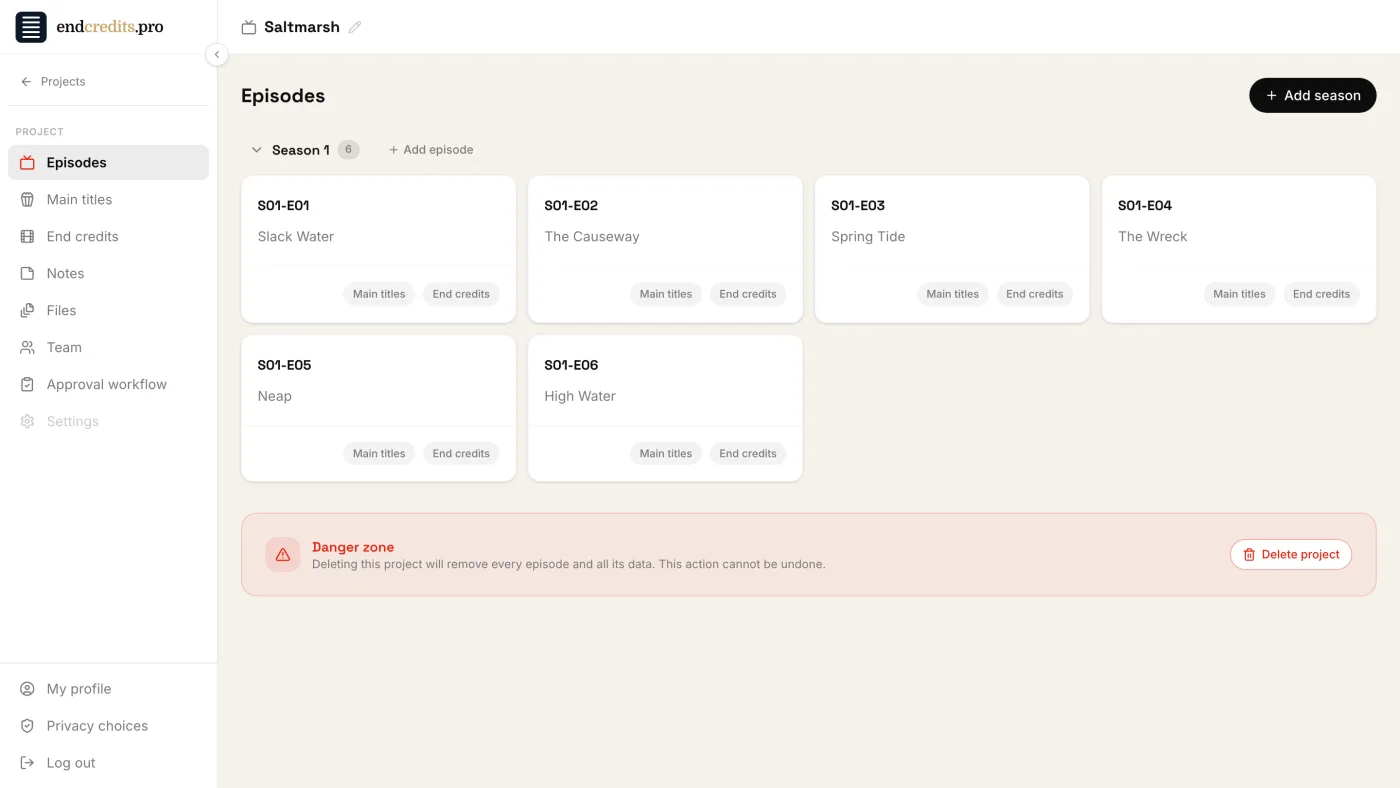
The project opens on the Episodes page.
- Click Add season. The New episode dialog opens with the next season number.
- Fill in the Episode number and the Episode title, and click Create.
- For the next episodes of the same season, click Add episode next to the season’s name.
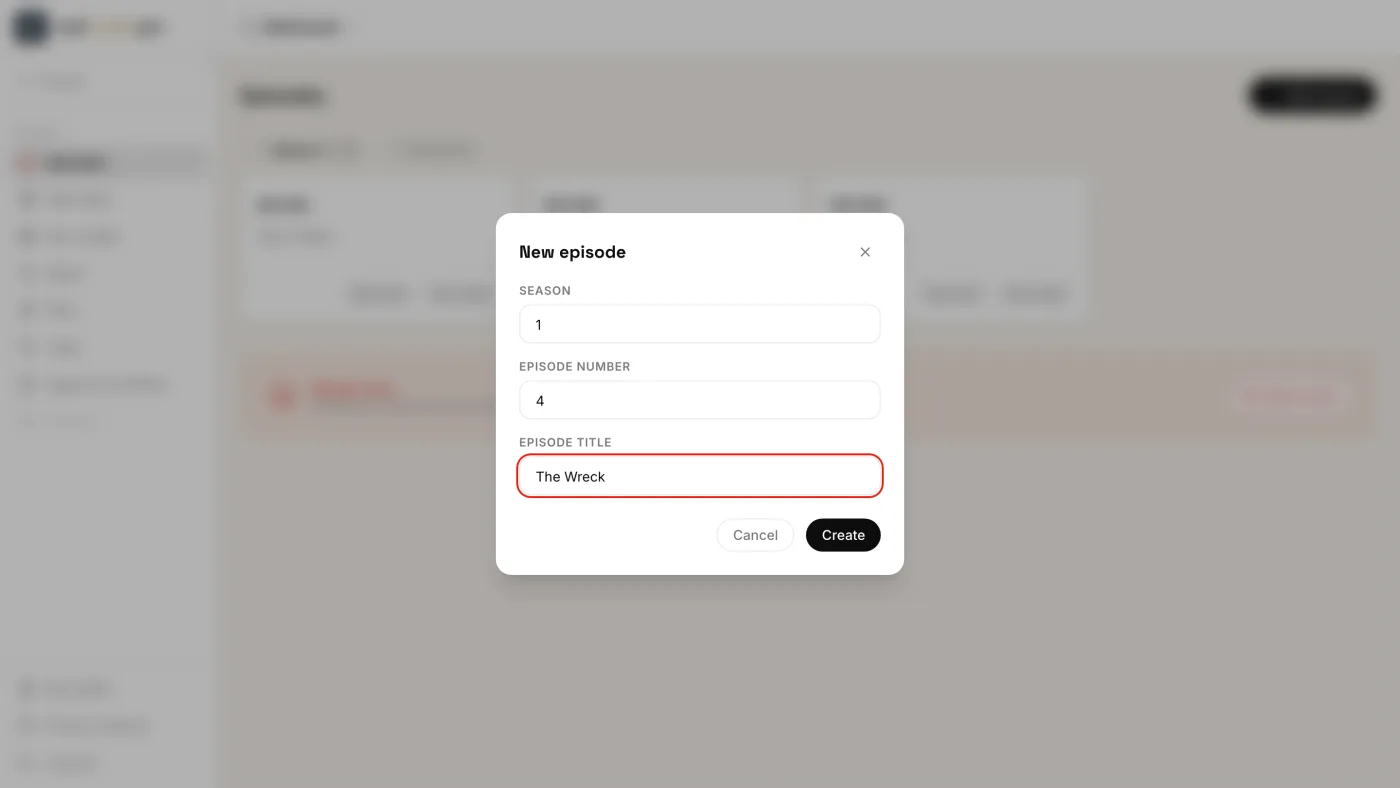
Each episode becomes a card, S01-E04 with its title, and two links: Main titles and End credits. Every episode has both, just like a film. Two episodes can’t share the same season and number. To rename or renumber an episode, use the pencil icon that appears on its card.
3. Work episode by episode
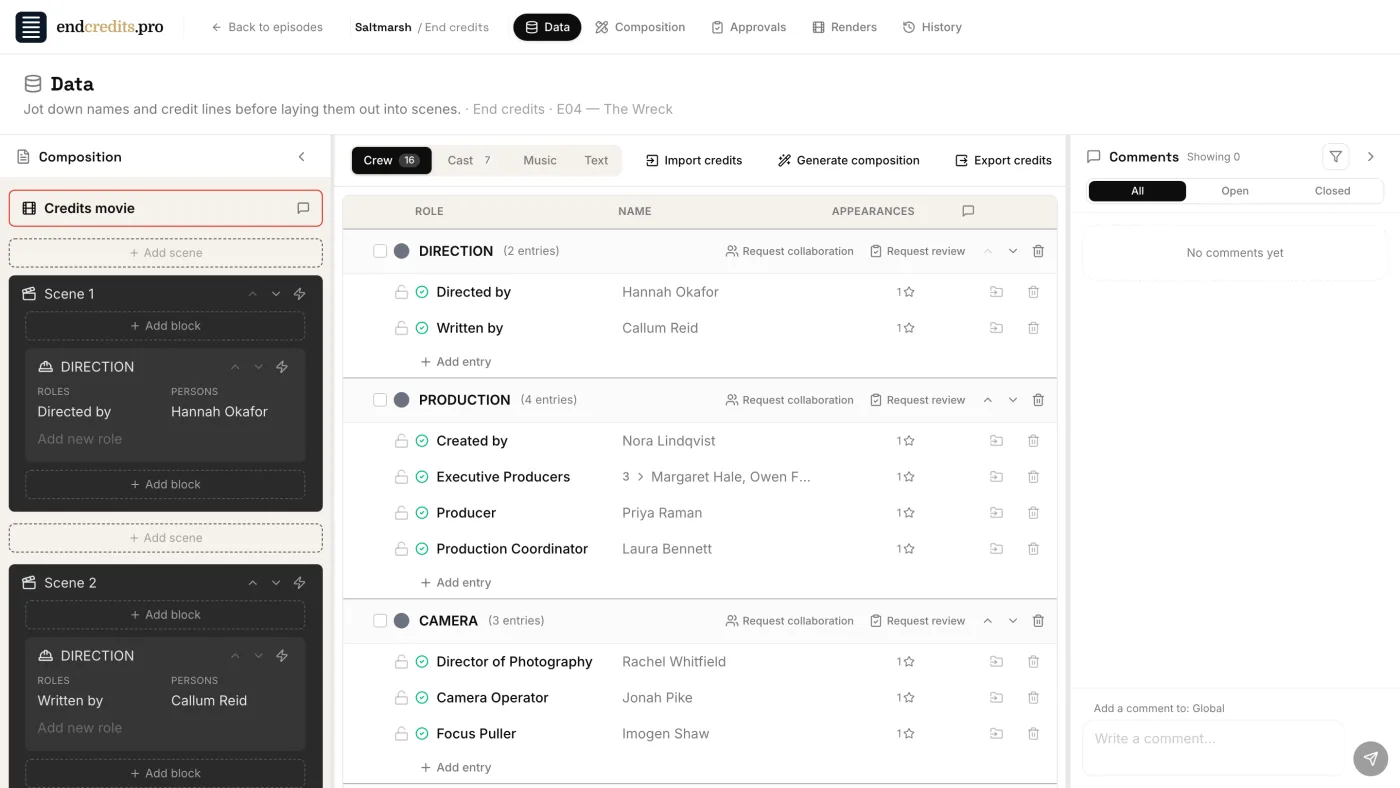
Click Main titles or End credits on an episode card. Everything you know from a film is there, for that episode only: the Data tab, the Composition, Approvals, Renders and History. The header shows which episode you’re in, for example “End credits · E04 — The Wreck”.
Episode four’s director, writer and guest cast stay in episode four. To move to another episode, click Back to episodes at the top left and open the next card.
4. Approve each episode on its own
The phases you set up in the Approval workflow (one list for main titles, one for end credits) apply to every episode, but each episode goes through them separately, from its own Approvals tab. When episode four is submitted and locked for sign-off, episode five is still open for changes. → Sign-off
Shared by the series, or per episode
| Shared by the whole series | Separate for every episode, and for its main titles and end credits |
|---|---|
| Team and roles | The Data list: entries, groups, verified status |
| Notes and Files | The Composition and its Design (the look) |
| Approval workflow (the phases and approvers) | Approval runs and the lock |
| Comments, review links, department and spelling requests | |
| Renders, exports and History |
There’s no series-wide list: names that repeat in every episode, such as the regular cast and the heads of department, are entered in each episode. The quickest way is to keep them in a spreadsheet and bring it into each episode with Import credits. → Import your crew lists
Related pages
Try it on your own production
EndCreditsPro is free during the beta. Credits from day one.
Last updated October 22, 2026.