Before day one
Key concepts
How EndCreditsPro is organized: the Data tab holds every name once, the Composition places them into scenes, and Design styles them, through the whole credits lifecycle.
EndCreditsPro separates what your credits say from where each line goes and how it looks. The names live in one list, the Data tab. The Composition places them into scenes. Design gives them your film’s look. Because the three are kept apart, you can start collecting names on day one, long before anyone thinks about layout, and nothing has to be retyped when post begins.
Projects and sets of credits
A project is one film or one series. Its Team, Notes, Files and Approval workflow belong to the whole project.
Inside it, the work happens on a set of credits: the Main titles or the End credits. Every film has both, and in a series every episode has both (Credits for a TV series). Each set of credits has its own tabs:
| Tab | What it’s for |
|---|---|
| Data | The list of every credit: who, in which role, in which department. |
| Composition | The order on screen: scenes, blocks and the lines inside them, with the Design panel and a live Previewer. |
| Approvals | The sign-off run for this set of credits. |
| Renders | The videos you’ve rendered, and new ones. |
| History | Every version and who changed what. |
Each set of credits is independent: its own list, composition, comments, approvals, renders and history. A name that appears in both the main titles and the end credits is entered in each.
Data: entries and groups
The Data tab has four tabs, one per kind of credit: Crew, Cast, Music and Text.
- An entry is one credit line: a role (on Cast, the Character; on Music, the Track) and one or more names under it (the Actor, the Artist). “Executive Producers” with three names is one entry.
- A group is how you sort the entries, usually by department: DIRECTION, CAMERA, ART, or cast tiers such as REGULARS and GUEST CAST. A group belongs to one tab. Entries in no group sit under Ungrouped. Deleting a group doesn’t delete its entries: they move to Ungrouped.
- Each entry has a status, To review or Verified, which records who verified it and when, and can be locked so its role and names can’t be edited. Status and lock help you manage the list; they don’t change what appears on screen.
Groups are also the unit you send out: a head of department fills in one group (Let the departments fill it in), a reviewer checks the spelling of one group (Get the spelling right).
One name, in one place
Every name is written once, in its entry. The Composition doesn’t hold a copy: it points to the entry. So:
- Correct a name anywhere, and it’s correct everywhere. Editing a name in the Data tab or in the Composition changes the same entry.
- One entry can appear more than once. You can place the same line in several blocks (a producer in the opening cards and again in the crawl); it’s still one entry. The Appearances column in the Data tab counts the placements.
- “Not shown” marks an entry that isn’t placed anywhere yet, so it won’t appear in the final credits. That’s normal in pre-production.
- Deleting an entry removes it from every block where it was placed. If it’s in use, the app asks first.
- Removing a line from the Composition (Remove from composition) only takes it off the screen; the entry stays in the Data tab.
Composition: scenes, blocks and placements
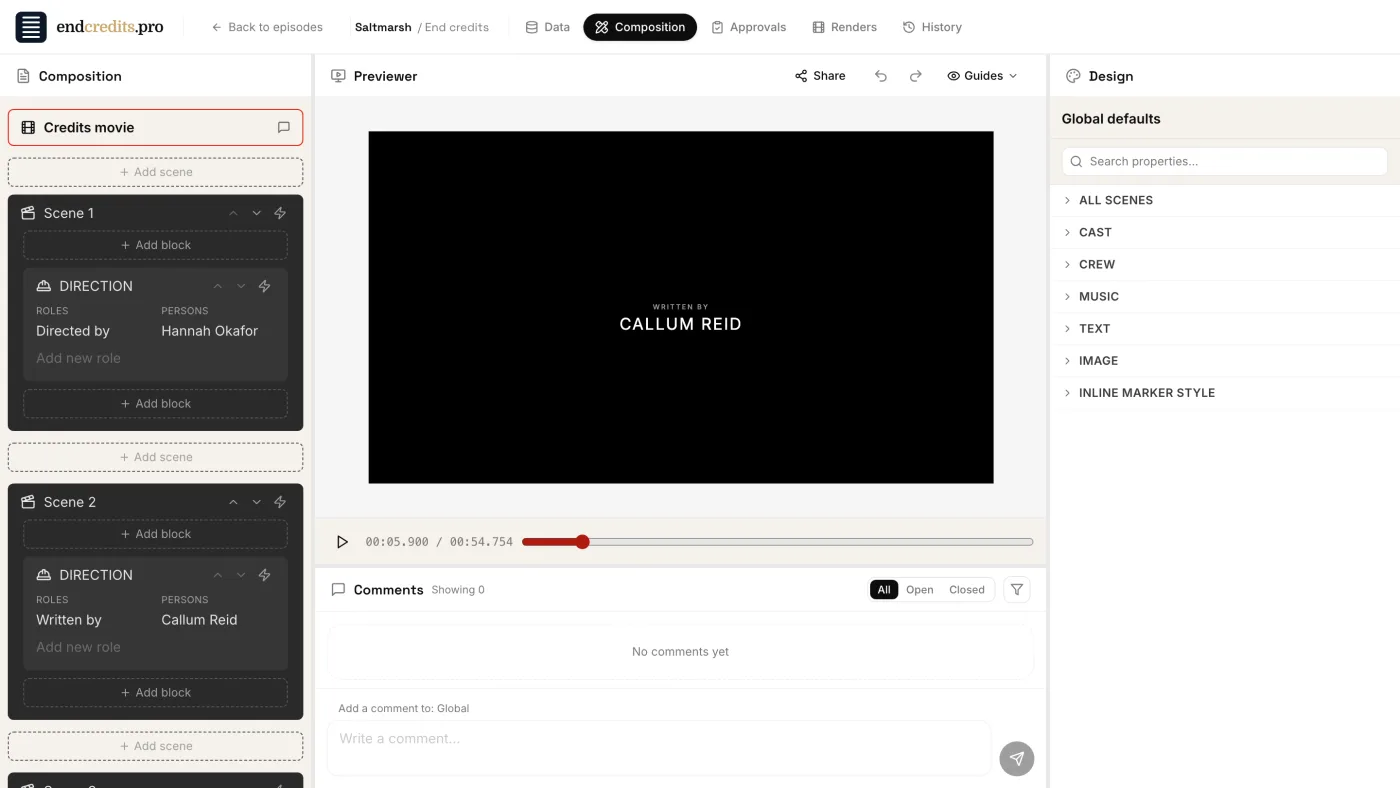
The Composition is the order of your credits on screen:
- Scenes play one after another. A scene is a Card, which holds on screen for a set time, or a Scroll, which crawls.
- Blocks sit inside scenes. A block has a type, Cast, Crew, Music, Text or Image, and lists the entries placed in it, in order. You place entries by dragging them from the Data list onto a block of the same type.
- Image blocks (logos, for example) live only in the Composition: they aren’t entries and don’t appear in the Data tab.
- You can hide a name in one block (Hide name in this block) without deleting it, for example when a person is credited elsewhere in that scene. The name stays in the entry and in every other placement.
You don’t have to build it by hand: Generate composition lays out the whole list for you, then you adjust it. → Build the crawl
Design: styles that cascade
The Design panel sets how everything looks, on five levels. Each level inherits from the one above unless you override it:
| Level | What it styles |
|---|---|
| Global defaults | Every scene of this set of credits: fonts, sizes, colors, spacing, timing. Shown when nothing is selected. |
| Scene | One scene, for example a card that needs a bigger title. |
| Block | One block inside a scene. |
| Item | One credit line, in this placement only. |
| Subitem | One name, in this placement only. |
Because styles at the Item and Subitem level belong to the placement, the same entry can look different in two places: large on an opening card, small in the crawl. The panel shows where each value comes from (“from default”, or the level it’s inherited from). → Inherit and override · Design properties
Comments: on the content or on the layout
A comment is attached to what you clicked:
- A comment on a credit line or a name is about the content. It follows the entry: you see it in the Data tab and on every placement of that line, and it survives when you reorganize the scenes.
- A comment on a scene or a block is about the layout, and stays with that scene or block.
The lifecycle
The same list travels through the whole production. Each moment uses a different part of the app:
| Moment | What you do | Where | Guides |
|---|---|---|---|
| Pre-production | Create the project, add the team, jot down names as people sign | Team, Data | Day one, Import your crew lists |
| Shoot | Heads of department fill in their groups; names get verified | Data | Department requests, Spelling review |
| Post-production | Lay the names out, give them your film’s look | Composition, Design | Build the crawl, Global styles and fonts |
| Picture lock | Feedback, review links, formal sign-off | Comments, Approvals, History | Feedback, Sign-off, History |
| Delivery | Render the video, or export the list for the edit | Renders, Export credits | Render the credits, Export for the edit |
You can enter at any moment: a production already in post can import its lists or start from a finished film and carry on from there.
Related pages
- Day one: project and team Create the project, invite the production office with roles, start the list.
- Build the crawl Scenes, cards and scrolls, Generate composition, guild order, reorder and hide names.
- Inherit and override How scenes and blocks inherit styles, and how to change one without the rest.
Try it on your own production
EndCreditsPro is free during the beta. Credits from day one.
Last updated October 22, 2026.