Delivery
Render the credits
Render your credits as an MP4 or an Apple ProRes file, from Full HD up to 4K DCI and from 23.976 to 60 fps, and download it when it's done.
The video loads from YouTube when you press play. Watch it on YouTube.
At delivery the credits have to leave the production in every format the delivery list asks for. Because your credits have lived in one place since day one, nobody has to retype them: you render them from the Renders tab as a finished video file.
Before you start
- You need to be an admin or editor on the project to open the renders list and create renders.
- The render uses the credits as they are saved: what’s placed in the Composition, with your design. If the credits went through sign-off, they’re still locked, so what you render is exactly what was approved.
Steps
1. Start a new render
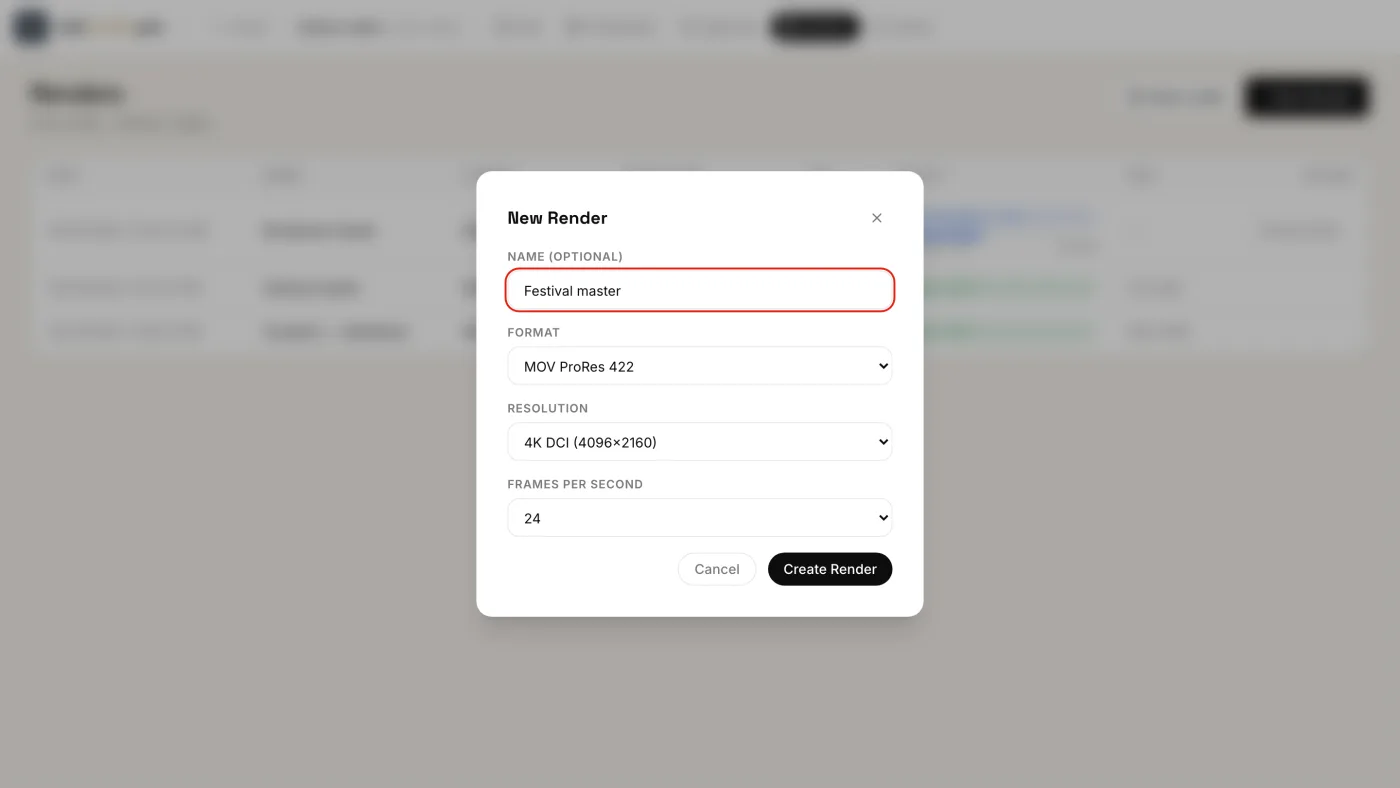
- Open the Renders tab and click + New Render.
- Give it a Name (optional), for example Festival master or Screener for the distributor.
- Choose the Format:
- MP4: H.264, for screeners and reviews.
- MOV ProRes 422: Apple ProRes 422 HQ, for the master.
- MOV ProRes 4444: Apple ProRes 4444.
- Choose the Resolution: Full HD (1920×1080), 2K (2560×1440), 2K DCI (2048×1080), 4K (3840×2160) or 4K DCI (4096×2160).
- Choose the Frames per second of your edit: 23.976, 24, 25, 29.97, 30 or 60.
- Click Create Render.
The resolution and the frame rate start from your project’s settings, so you usually only change them for a special deliverable.
2. Follow its progress
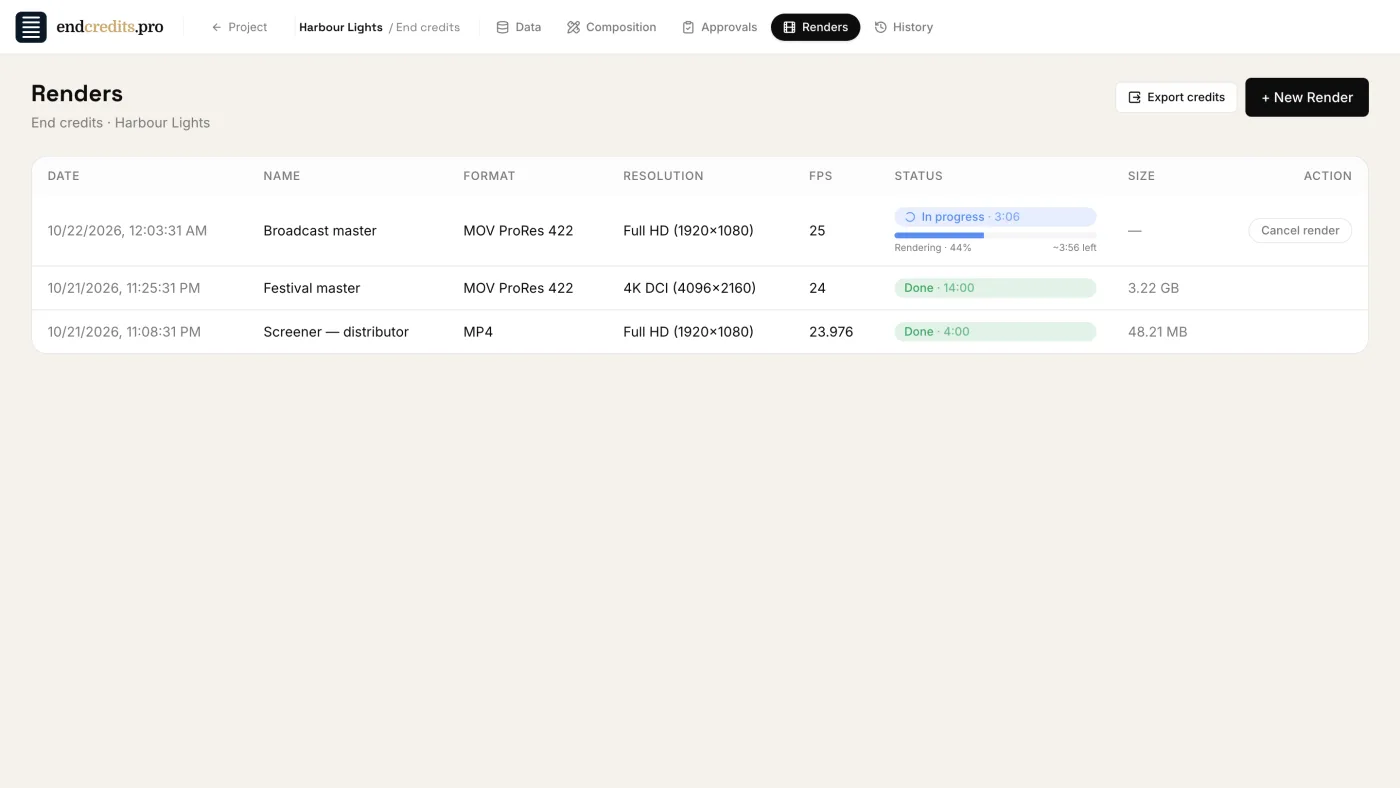
The render runs on our servers, so you can keep working, or close the tab. The list shows its status: Pending, then In progress with a progress bar and the time left, then Done with the file size.
While it’s running you can click Cancel render. If a render fails, click Retry.
3. Download it
When the status reads Done, click Download.
Every render stays in the list with its date, name, format, resolution and frame rate, so you can download it again later, or render a new one after a late change.
Credits for the edit instead of a video
If your editor would rather build the credits in their own editing software, you don’t need a render: click Export credits at the top of the Renders tab to download the credits as text or Excel. See Export for the edit.
Related pages
Try it on your own production
EndCreditsPro is free during the beta. Credits from day one.
Last updated October 22, 2026.