Before day one
What is EndCreditsPro
EndCreditsPro keeps your film's credits in one place for the whole lifecycle: collect every name from day one, get them approved, and deliver the credits ready for the screen.
The video loads from YouTube when you press play. Watch it on YouTube.
EndCreditsPro is where a production keeps its credits, from the first hire to the final crawl. You collect every name while people are signing on, have the right people approve them, and deliver the credits as a video or as a file for the edit. One list carries all of it, so nothing has to be copied between spreadsheets, emails and the edit.
Before you start
- To create a project you need an EndCreditsPro account and to be a member of an organization. You become the project’s Admin.
- Everyone else joins with a role: see Day one: project and team and Roles and permissions.
- People outside the production office, such as heads of department, reviewers and approvers, never need an account: they work from private links sent by email.
The lifecycle, step by step
1. Set up the project on day one
Create the project, as a film or as a series, and both sets of credits are ready from the start: Main titles and End credits. Add your production office to the Team, each with a role. → Day one: project and team · Credits for a TV series
2. Collect the names as people sign
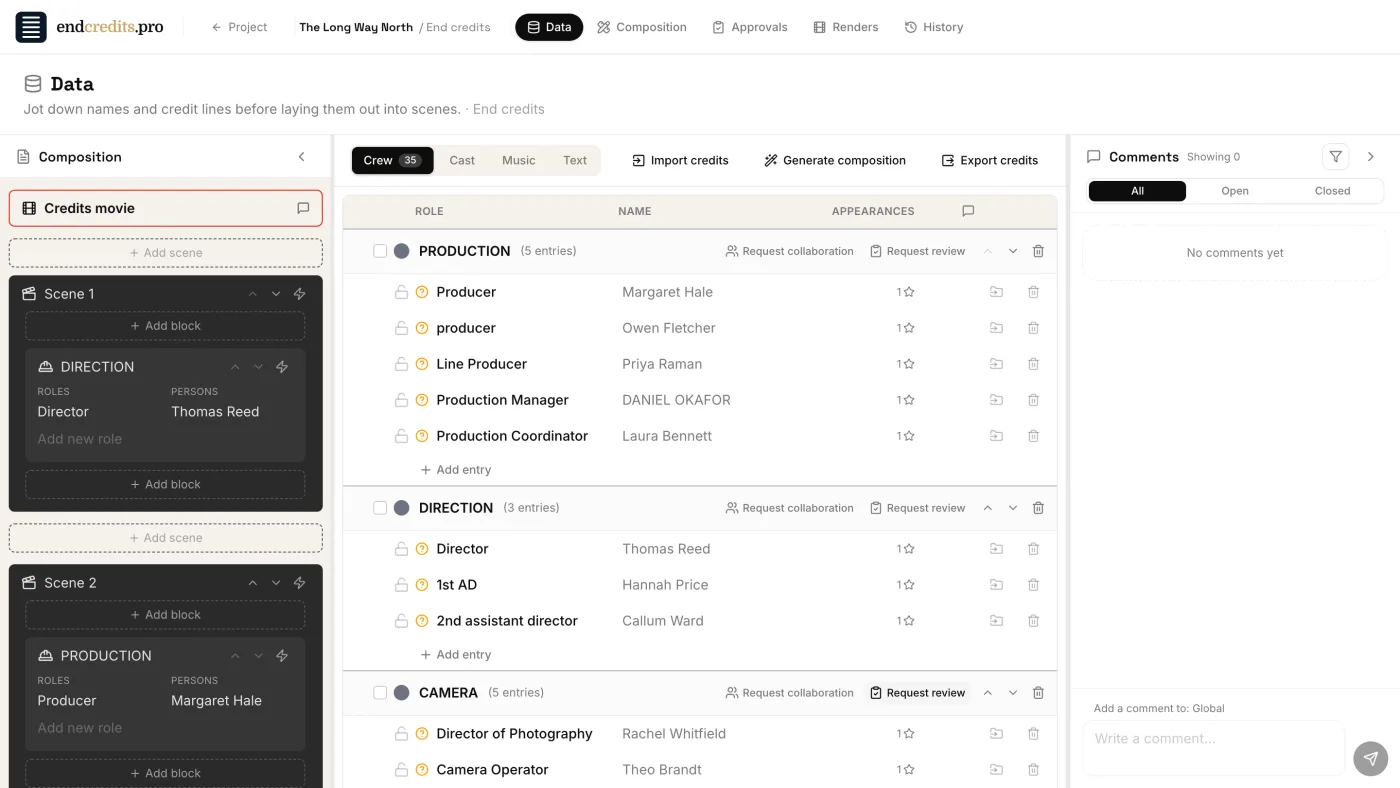
The Data tab is the list of every credit, sorted into Cast, Crew, Music and Text, and into groups such as departments. Type them in as contracts come in, or start from what you already have:
- Import credits reads an Excel, CSV or Word file, or text pasted from an email, and sorts each name into its department. → Import your crew lists
- It can also read the credits from the MP4 of a film you’ve already made. → Import from a finished film
3. Let the people who know fill the gaps
For each department, send its head a link with Request collaboration: they add their own crew without logging in, and you accept or decline what they send. When the list is complete, Request review asks someone to check the spelling of every name. → Let the departments fill it in · Get the spelling right
4. Build the credits and give them your film’s look
In post, the Composition tab lays the names out into scenes: cards that hold on screen and scrolls that crawl. Generate composition builds a first version from your list, which you then reorder and style in the Design panel with a live preview. → Build the crawl · Global styles and fonts · Cards, scrolls and timing
5. Get the sign-off
Comments can be pinned to a line or a block, and review links let anyone look at the credits without an account. At picture lock, Submit for approval sends the credits through your Approval workflow: phases in order (producers, legal, the distributor, as you choose), each approver reviewing, commenting and approving from their own link. While the run is in progress the credits are locked, so what gets approved is what gets delivered. → Comments and review links · Sign-off
Every change is kept in History, so an earlier version can be restored. → History and versions
6. Deliver
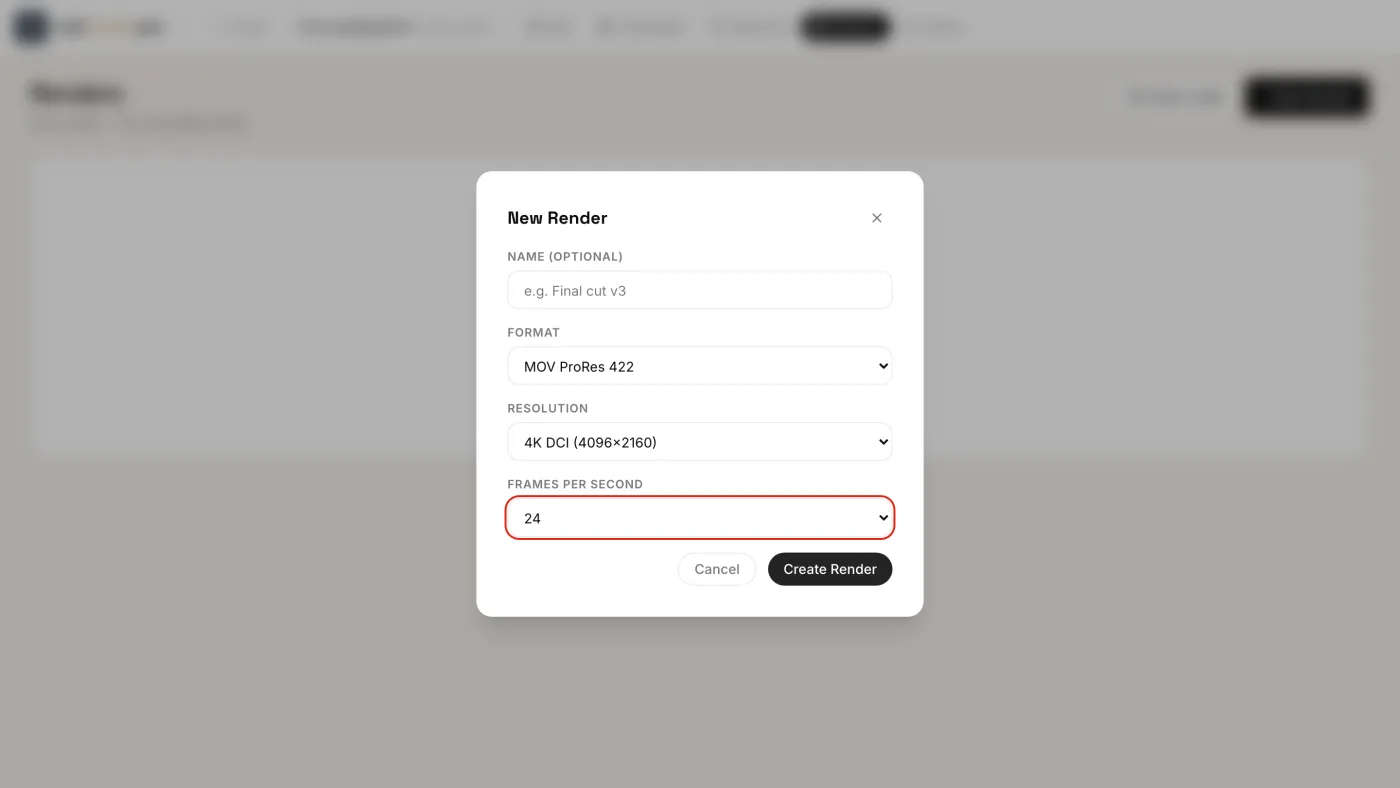
From the Renders tab, render the credits as MP4 or MOV ProRes (422 or 4444), from Full HD up to 4K DCI (4096×2160), at 23.976 to 60 fps. If your post house builds the credits in its own editing software, Export credits gives them a TXT or Excel file in the order of your composition. → Render the credits · Export for the edit
Why start on day one
Every hire comes with a name, a job title and a spelling, and they’re easiest to get right the week the person signs, not months later in post when the crew has moved on to other shows. EndCreditsPro is built for that: you start the list in pre-production, it grows through the shoot, and the same list becomes the credits you design, approve and deliver. Key concepts explains how that one list works.
Related pages
- Day one: project and team Create the project, invite the production office with roles, start the list.
- Key concepts Data, Composition and Design: every name lives in one place, through the whole lifecycle.
- Import your crew lists Bring an Excel, CSV or Word file, or paste text: names are sorted by department.
Try it on your own production
EndCreditsPro is free during the beta. Credits from day one.
Last updated October 22, 2026.