Pre-production and shoot
Import from a finished film
Start a new film from the credits video of one you already made: EndCreditsPro reads every role and name, and rebuilds the layout of the cards and the crawl.
The video loads from YouTube when you press play. Watch it on YouTube.
Your last film’s credits took weeks to get right: every department, every spelling, the order, the look. Often the only copy left is the film itself, the credits as a video file from the edit. Import from video reads that video and gives you back the credits, so the new film starts from them instead of a blank page.
Before you start
- You need to be an admin or editor on the project.
- You need the credits as an MP4 file, up to 2 GB. A file with only the credits is best.
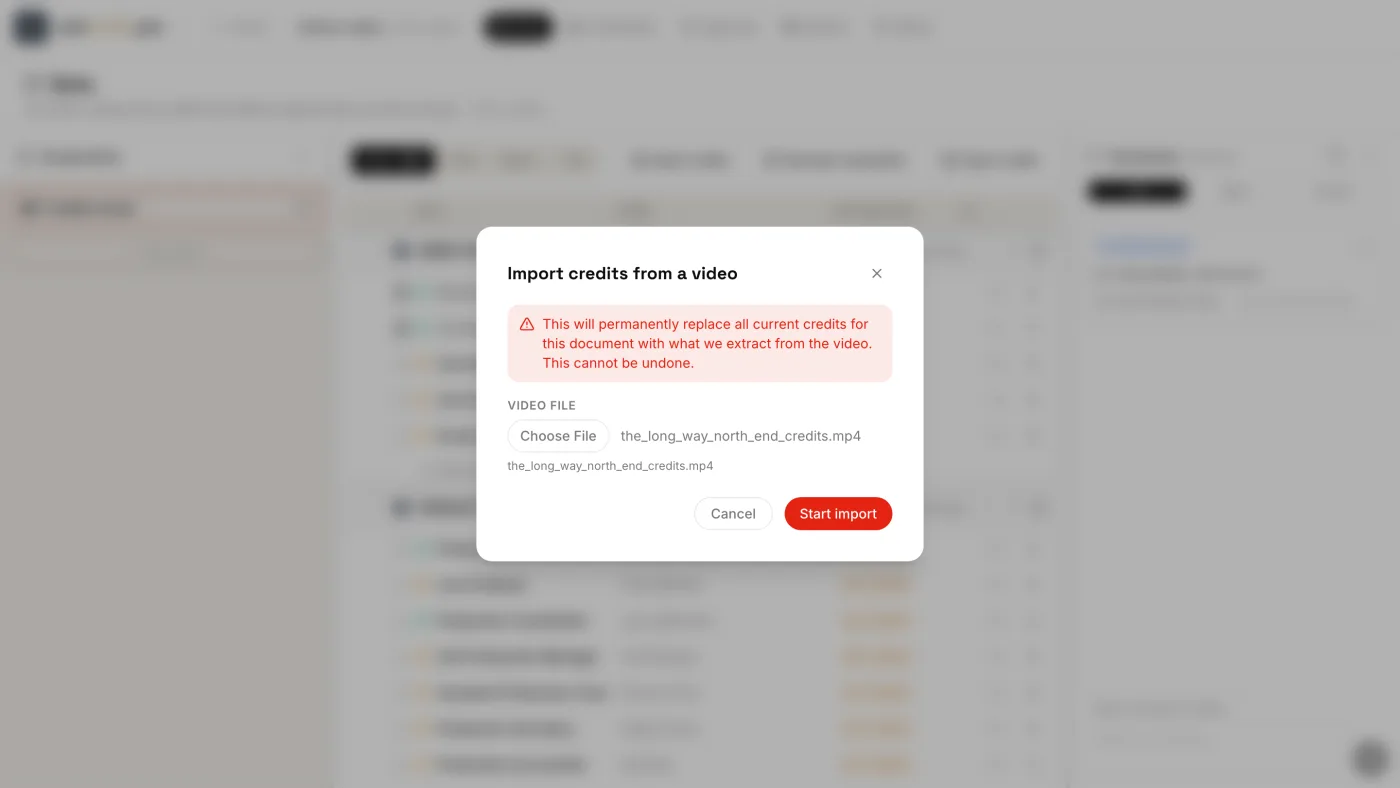
- Do it first. A video import replaces everything in the credits you have open (the end credits or the main titles, and in a series, that episode): every line, group and the whole composition. If those credits already have content, it’s saved in the History as a Before import version first.
- While the credits are locked by an approval workflow, Import credits is disabled.
Steps
1. Open the video import
- Open the Data tab.
- Click Import credits in the toolbar.
- Choose Import from video (Extract credits from an MP4 file).
2. Pick the video and start
- Under Video file, choose the MP4 of the credits.
- Read the red warning: everything in these credits will be replaced by what is read from the video.
- Click Start import.
3. Let it read the film
The video uploads, then EndCreditsPro watches it. It works out where the credits appear card by card and where they roll as a crawl, and reads every line in any language, exactly as it’s written: nothing is translated. A long crawl can take a few minutes. Meanwhile Import credits shows a spinner; when the import is done, the Data tab reloads with the new credits.
If it fails, you see Import failed next to the button: click Try again. A failed import changes nothing.
4. Look at what you got
You get two things:
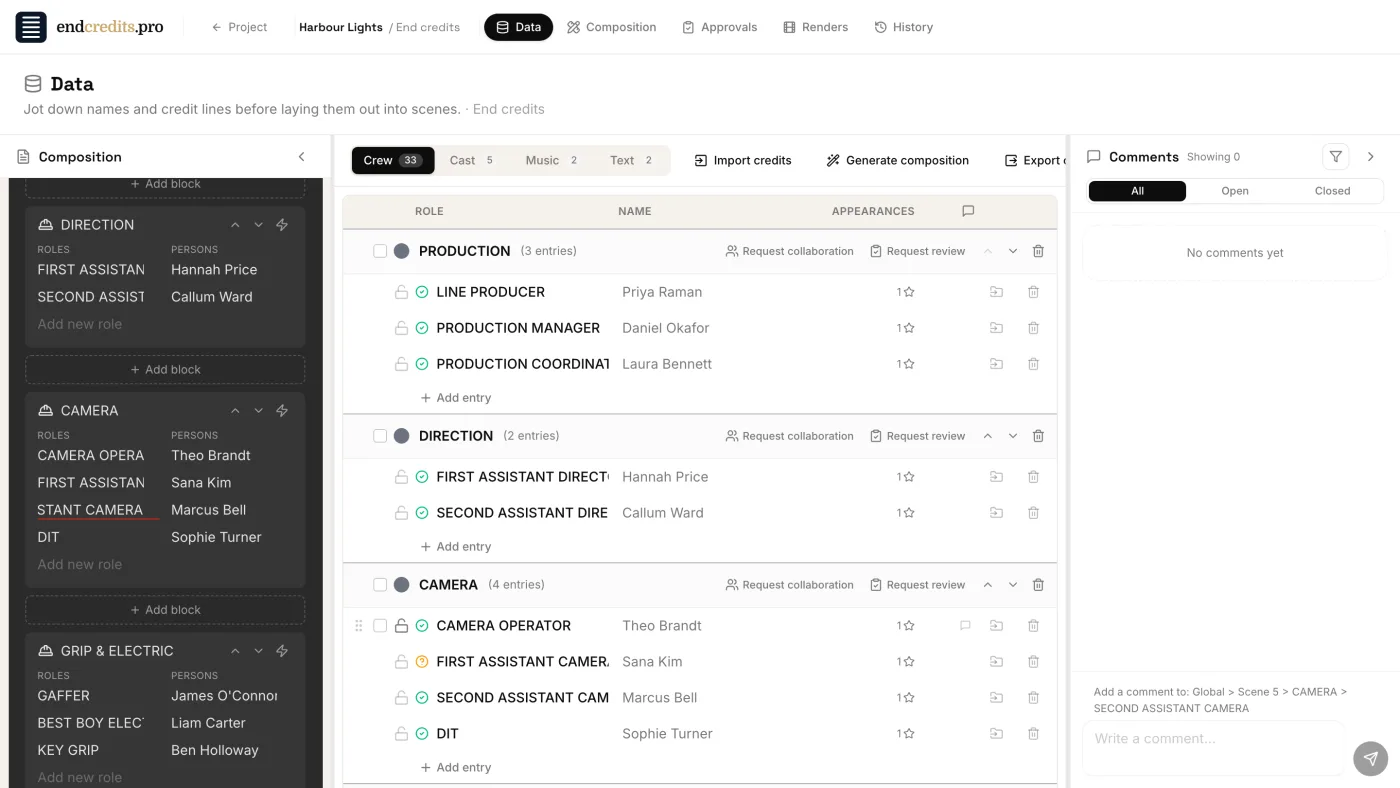
- In the Data tab, every role and every name, grouped by department. The groups come from the department titles on screen; lines that had no title go to Ungrouped.
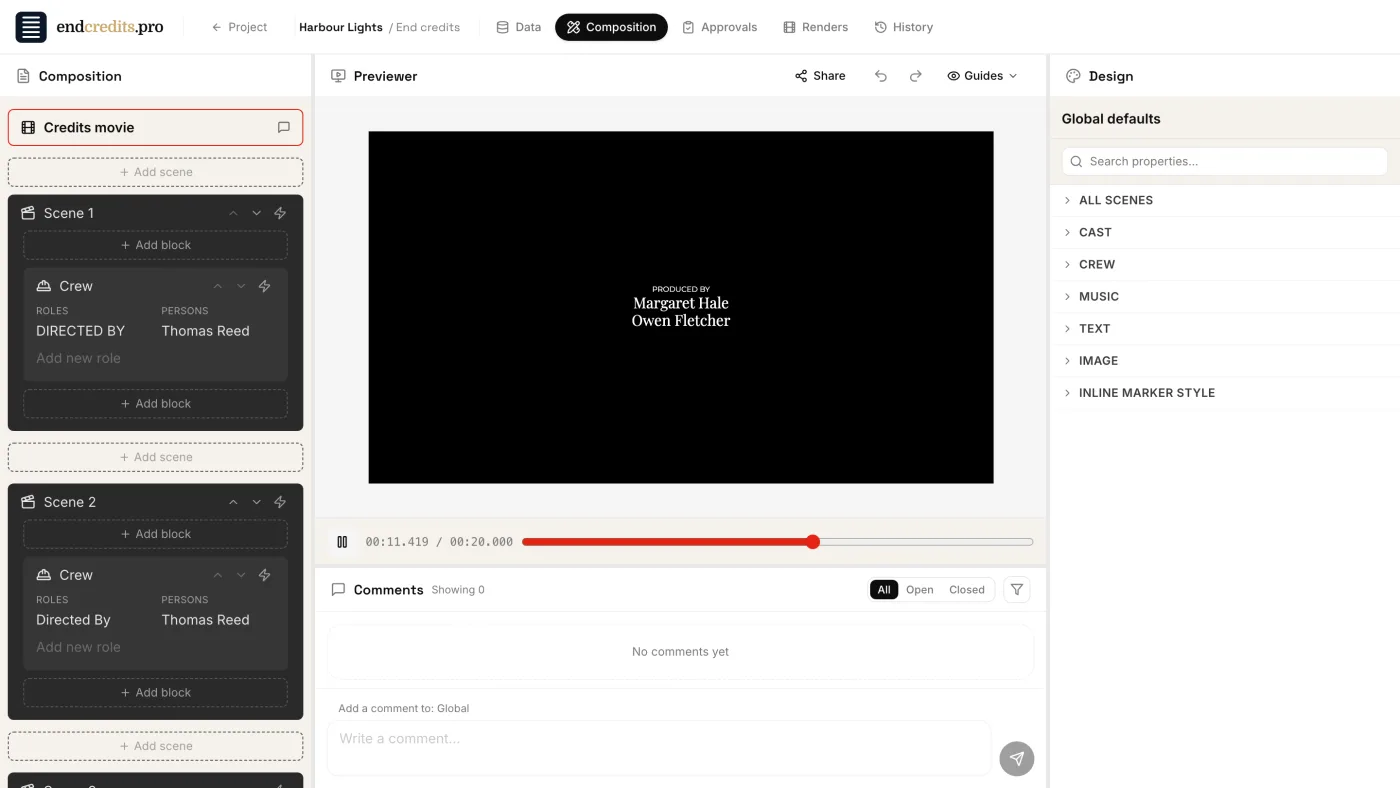
- In the Composition tab, the layout itself: the cards and the crawl as scenes (a crawl keeps its speed), the columns, the alignment, the spacing, and a close match for the fonts.
5. Make it this film’s
Keep the people who are coming back and change the ones who aren’t. Imported lines arrive as Verified, because they were already final on the old film. Every line you edit goes back to To review (the amber icon), so you can always see what’s new and still needs checking.
If you change your mind
Open the History tab and go back to the Before import version: it holds the credits and the composition as they were before the video was read. See History and versions.
Related pages
Try it on your own production
EndCreditsPro is free during the beta. Credits from day one.
Last updated October 22, 2026.