Picture lock
History and versions
See what happened to your credits, who did it and when, save versions at key moments, compare them with today's credits and restore one if something went wrong.
The video loads from YouTube when you press play. Watch it on YouTube.
By picture lock, many hands have touched the credits: department heads, reviewers, the edit. The History tab keeps a record of what happened to them, and every saved version can come back, so you never depend on a file called credits_FINAL_v7.
Before you start
- Everyone on the project can open the History tab, see versions and play them.
- To create a version or restore one you need to be an admin or editor.
- History and versions are kept separately for the main titles and the end credits (and, in a series, for each episode).
Steps
1. Read the History
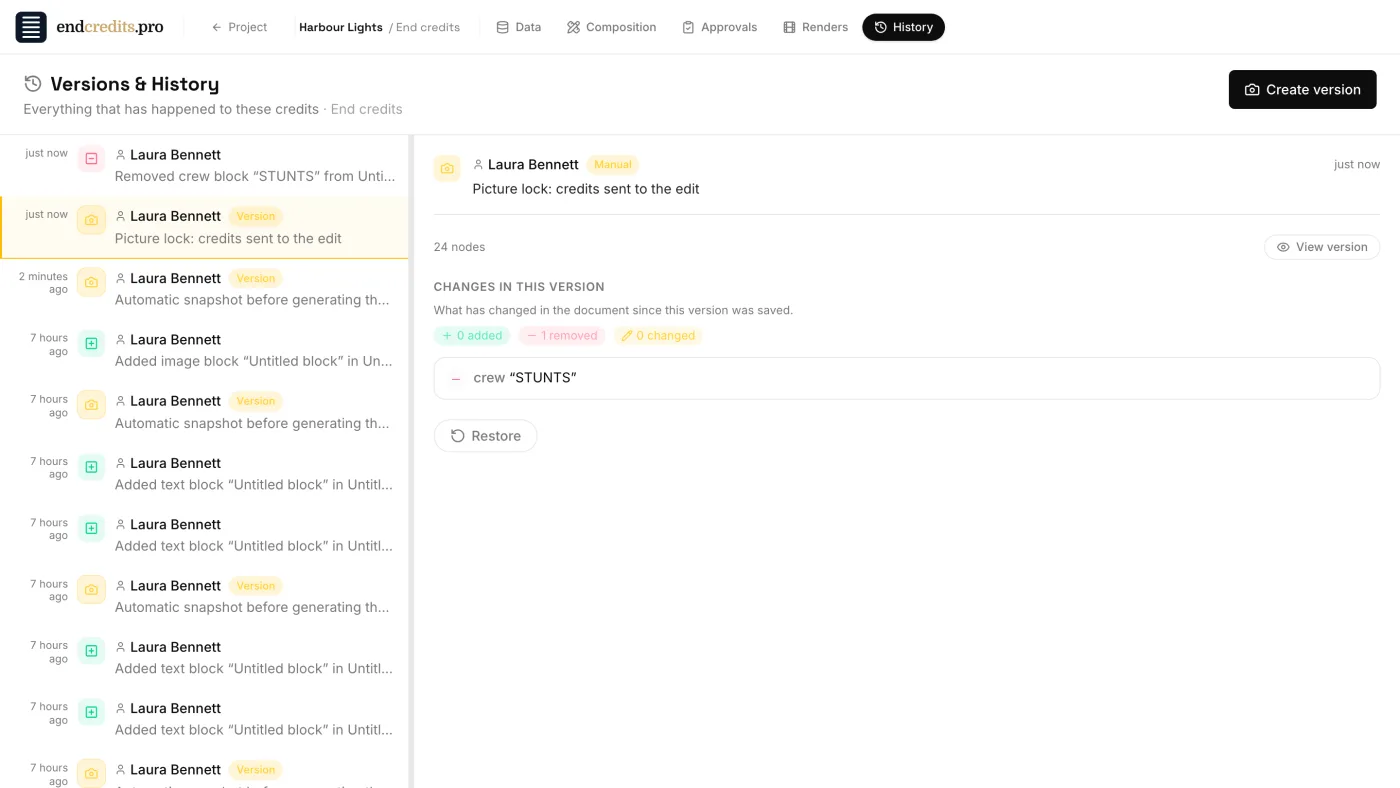
Open the History tab (“Versions & History”). It lists what happened to these credits, newest first, with who did it and when. Click any row to see its details on the right.
What it records:
- scenes and blocks added to or removed from the Composition;
- imports, and requests to departments and their outcome;
- comments left and closed;
- review links shared, revoked or expired;
- approval rounds: sent for approval, approved, rejected, back to editing;
- renders started, completed and downloaded;
- versions created and restored.
Individual edits to a name or a line in the Data tab are not listed one by one. To know what changed in the content, compare versions (step 3).
2. Save a version
A version is a full copy of the credits at that moment: the names, the groups and the Composition.
EndCreditsPro saves one on its own before the big moments. Each has a badge in the list:
| Badge | When it’s saved |
|---|---|
| Before import | Before an import replaces your list, and before an import from a finished film |
| Before generating | Before Generate composition rebuilds the Composition |
| Before approval | Each time the credits are submitted for approval |
| Before restore | Before a version is restored |
At a milestone, like picture lock, save one yourself: click Create version, add a Message (optional) such as “Picture lock: credits sent to the edit”, and click Create version. Its badge reads Manual.
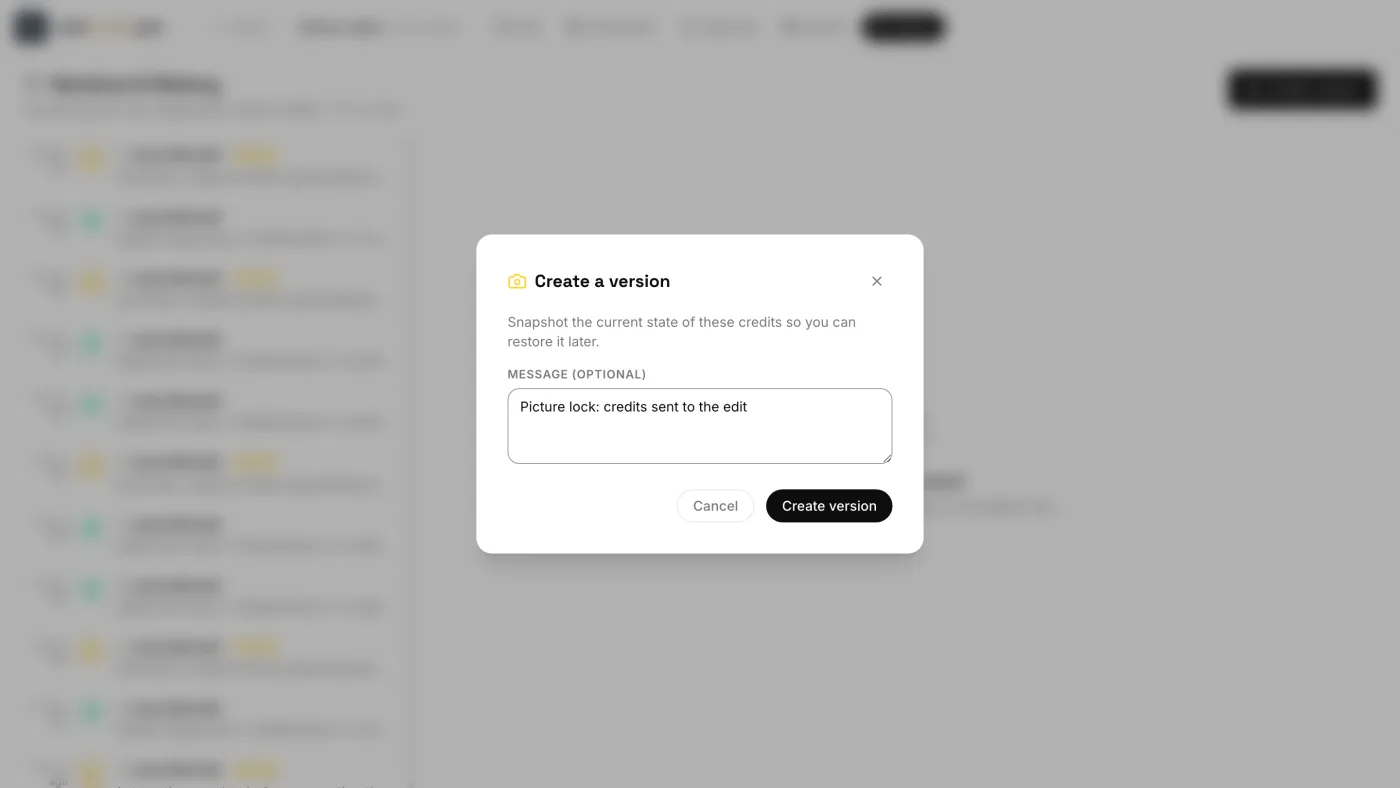
The versions you create yourself are kept for good. Automatic versions are capped: the latest 20 are kept for each set of credits, and older automatic ones are removed.
3. Compare and view
Select a version in the list. Under Changes in this version you see what has changed in the Composition since it was saved: which scenes and blocks were added, removed or changed, with a count of each.
Click View version to play that version in the preview, just as it was.
4. Restore a version
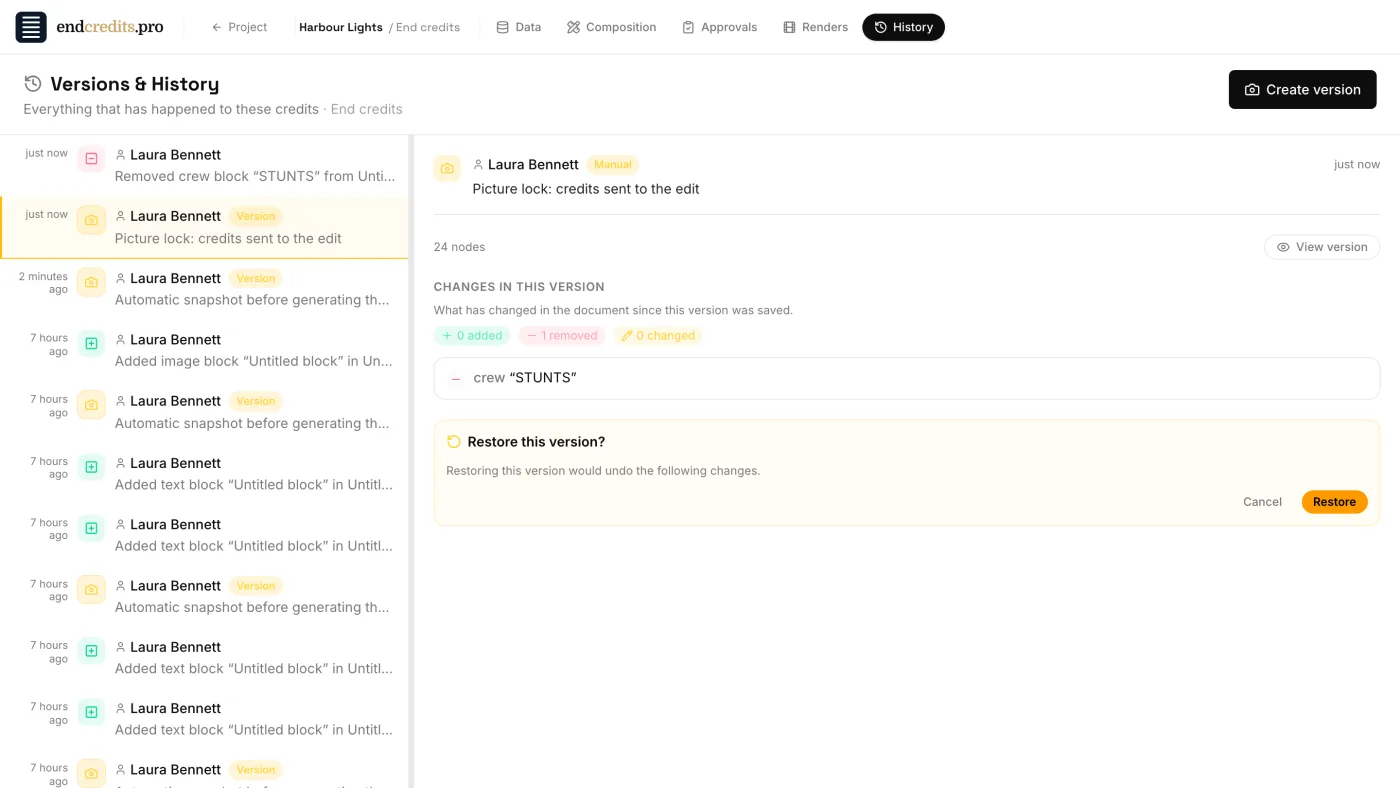
- Select the version and click Restore.
- The confirmation, “Restore this version?”, lists the changes the restore would undo.
- Click Restore.
The names, the groups and the Composition go back to that version. Before it restores, EndCreditsPro saves what you had as a Before restore version, so even a restore can be undone.
Related pages
Try it on your own production
EndCreditsPro is free during the beta. Credits from day one.
Last updated October 22, 2026.